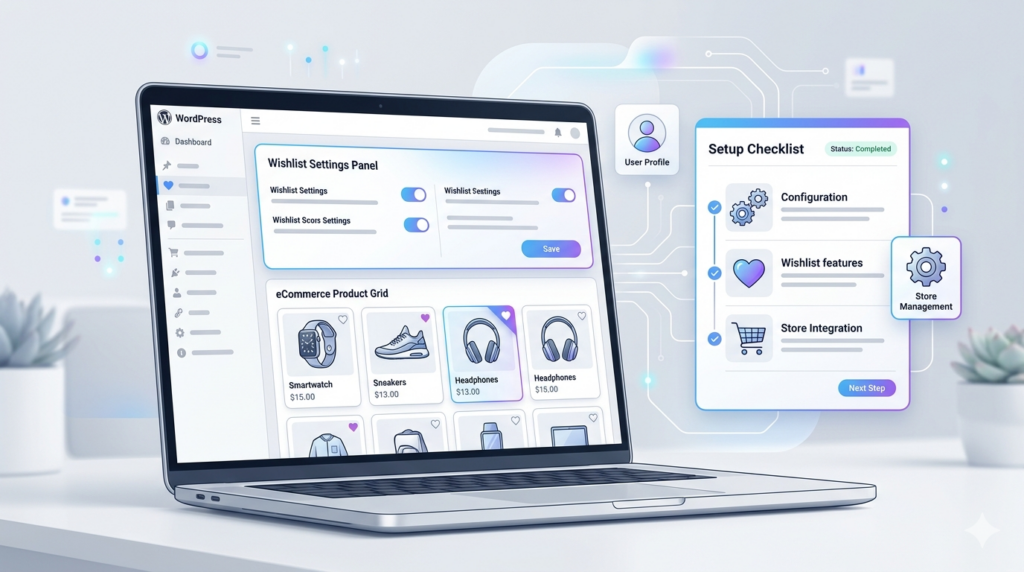
If you run a FluentCart store, adding a wishlist can improve the shopping experience.
Customers often want to save products before buying. Some are not ready to purchase. Some want to compare products. Some want to wait for a discount.
With GoWishCart – Wishlist for FluentCart, you can add wishlist functionality to your FluentCart store. The plugin supports guest users, logged-in users, selected product variations, customizable buttons, wishlist pages, shortcodes, and optional FluentCRM automation.
In this guide, you will learn how to set up GoWishCart for your WordPress store.
What You Need Before Setup
Before installing GoWishCart, make sure your site has:
A working WordPress website.
FluentCart installed and activated.
Products added in FluentCart.
Admin access to your WordPress dashboard.
GoWishCart requires FluentCart to function because it is built specifically for FluentCart stores.
Step 1: Install GoWishCart
Go to your WordPress dashboard.
Click Plugins > Add New.
Search for GoWishCart – Wishlist for FluentCart.
Click Install Now.
After installation, click Activate.
You can also upload the plugin files to the /wp-content/plugins/gowishcart-wishlist-for-fluentcart directory, but the dashboard installation method is easier for most users. The plugin installation instructions mention both options.
Step 2: Make Sure FluentCart Is Active
GoWishCart needs FluentCart.
After activating GoWishCart, check that FluentCart is also installed and activated. If FluentCart is not active, the wishlist plugin will not work correctly because it depends on FluentCart products and checkout functionality.
Step 3: Open GoWishCart Settings
In your WordPress dashboard, go to:
Settings > GoWishCart
This is where you can configure the wishlist feature. The plugin installation guide says to navigate to Settings > GoWishCart after activation.
Step 4: Choose or Create a Wishlist Page
A wishlist page is where customers see saved products.
GoWishCart allows you to select a wishlist page or use the default wishlist page. You can also display the wishlist with this shortcode:
[gowishcart_wishlist]
To create a custom wishlist page:
Go to Pages > Add New.
Add the title: My Wishlist.
Add the shortcode:
[gowishcart_wishlist]
Publish the page.
Then choose this page in GoWishCart settings.
This makes it easy for customers to find their saved products.
Step 5: Add Wishlist Page to Your Menu
After creating the wishlist page, add it to your website menu.
Go to Appearance > Menus or Appearance > Editor, depending on your theme.
Add the My Wishlist page to your main menu or account menu.
A wishlist feature is only useful if customers can find it easily.
Recommended menu label:
Wishlist
My Wishlist
Saved Items
Favorites
For most stores, Wishlist is the clearest option.
Step 6: Configure Wishlist Button Position
GoWishCart allows admins to control button placement on product pages and shop/archive pages.
You can place the wishlist button near the product title, price, or add-to-cart area.
Best practice:
Place the wishlist button close to the Add to Cart button.
This makes it easy for shoppers to either buy now or save for later.
Step 7: Enable Wishlist Button on Shop Page
Many customers browse from the shop or archive page.
GoWishCart includes an option to show the wishlist button on the shop page.
This is helpful because customers can save products without opening every product page.
Recommended setting:
Enable wishlist buttons on product archive/shop pages.
This improves browsing speed and makes the wishlist feature more visible.
Step 8: Customize Button Text and Icons
GoWishCart allows button text and icons to be customized.
You can use simple text such as:
Add to Wishlist
Save for Later
Add to Favorites
Save This Product
For the remove state, you can use:
Remove from Wishlist
Saved
Remove Favorite
Recommended text:
Add to Wishlist
Remove from Wishlist
This is clear and familiar for most ecommerce users.
Step 9: Test Guest Wishlist Support
Now test the wishlist as a guest visitor.
Open your website in a private or incognito browser window.
Visit a product page.
Click Add to Wishlist.
Go to the wishlist page.
Check if the product appears.
Try adding a product variation, such as size or color, if your product has variations.
GoWishCart supports guest users and selected product variations, so this test is important.
Step 10: Test Logged-In Wishlist Support
Next, test the wishlist while logged in.
Log in as a test customer.
Add a product to the wishlist.
Open the wishlist page.
Check if the product is saved correctly.
This helps confirm that both guest users and registered users can use the wishlist.
Step 11: Test Product Variation Saving
If your store sells variable products, test this carefully.
Example:
Open a product with size and color options.
Choose Size: Medium.
Choose Color: Blue.
Click Add to Wishlist.
Open the wishlist page.
Check if the selected variation is saved.
GoWishCart supports product variation saving, which means customers can save the exact product version they selected.
Step 12: Set Up FluentCRM Automation Optional
If you use FluentCRM, GoWishCart can connect with automation triggers.
According to the plugin page, FluentCRM automation can trigger when:
A product is added to a wishlist.
A product is removed from a wishlist.
A wishlist item price drops.
An out-of-stock wishlist item comes back in stock.
This can help you send more targeted emails.
Example automation:
Customer adds a product to wishlist.
Wait 2 days.
Send a reminder email.
If product price drops, send a price-drop alert.
If product returns to stock, send a back-in-stock email.
This type of automation can be useful because it is based on customer interest.
Step 13: Set Up Price Drop and Back-in-Stock Notifications Optional
GoWishCart supports price-drop alerts and back-in-stock notifications when users have provided an email address.
These notifications are useful because they are timely.
A customer may not buy today. But if the price drops tomorrow, they may come back.
A customer may want an out-of-stock product. When it becomes available again, a notification can bring them back to your store.
Step 14: Add a Wishlist Button with Shortcode Optional
GoWishCart supports the wishlist button shortcode:
[gowishcart_wishlist_button]
This can be useful if you want to place a wishlist button in a custom area of your website.
For example, you may use it inside a custom product layout, landing page, or page builder section.
Step 15: Review Privacy and User Experience
Guest wishlists often use cookies or sessions. GoWishCart explains that guest wishlists are stored using session-based cookies.
Because of this, you should make sure your privacy policy explains how your store uses cookies and customer data.
Also, if you collect email addresses for wishlist notifications, explain clearly what the customer will receive.
Good message example:
“Enter your email to receive price-drop and back-in-stock alerts for your wishlist items.”
Recommended GoWishCart Settings
For most FluentCart stores, start with these settings:
Wishlist page: My Wishlist
Product page button: Enabled
Shop page button: Enabled
Guest wishlist: Enabled
Button text: Add to Wishlist
Remove text: Remove from Wishlist
Product variations: Enabled
FluentCRM automation: Enable only if FluentCRM is installed
Notifications: Enable if you want price-drop or stock alerts
Common Setup Mistakes to Avoid
Do not forget to install FluentCart first. GoWishCart requires FluentCart.
Do not hide the wishlist page. Add it to your menu.
Do not use confusing button text. Keep it simple.
Do not skip guest testing. Always test in incognito mode.
Do not forget mobile testing. Many customers browse from phones.
Do not collect emails without clear permission.
Final Checklist
GoWishCart installed.
FluentCart active.
Wishlist page created.
[gowishcart_wishlist] shortcode added.
Wishlist page added to menu.
Wishlist button enabled on product pages.
Wishlist button enabled on shop/archive pages.
Button text customized.
Guest wishlist tested.
Logged-in wishlist tested.
Product variations tested.
FluentCRM automation configured if needed.
Notifications configured if needed.
Final Thoughts
GoWishCart is a useful wishlist plugin for FluentCart stores because it supports both guest and logged-in users. It also supports product variations, customizable wishlist buttons, wishlist shortcodes, optional FluentCRM automation, price-drop alerts, and back-in-stock notifications.
If your store visitors often browse but do not buy immediately, a wishlist can help them save products and return later.