On this page
Black Friday is the one time of year shoppers expect to wait. They browse in early November, decide what they want, and hold off until prices drop. That’s exactly what a wishlist is for.
Here’s how to use one before, during and after the sale.
2–4 weeks before: get shoppers saving
Your goal is to turn “I’ll wait for the sale” into a saved item you can follow up on.
- Tell shoppers to save. Add a banner or note on product pages: “Save it to your wishlist and we’ll email you if the price drops on Black Friday.”
- Make it work for guests. Most early browsers aren’t logged in. Guest wishlists let them save without an account, and optional email capture lets you alert them.
- Show the button everywhere. Turn on Show Button on Shop Page so shoppers can save straight from your catalog and category pages.
- Link the wishlist in your header. See how to add a wishlist link to your header.
- Email your list. Ask existing customers to build their wishlist now (template 9 in wishlist email examples).
1 week before: plan your deals with wishlist data
Look at what’s been saved:
- Most-saved products are your best candidates for discounts. People already want them.
- Saved but rarely bought items may just need a lower price.
- Sold-out items people keep saving are worth restocking before the sale.
- Popular variations tell you which sizes and colors to stock up on.
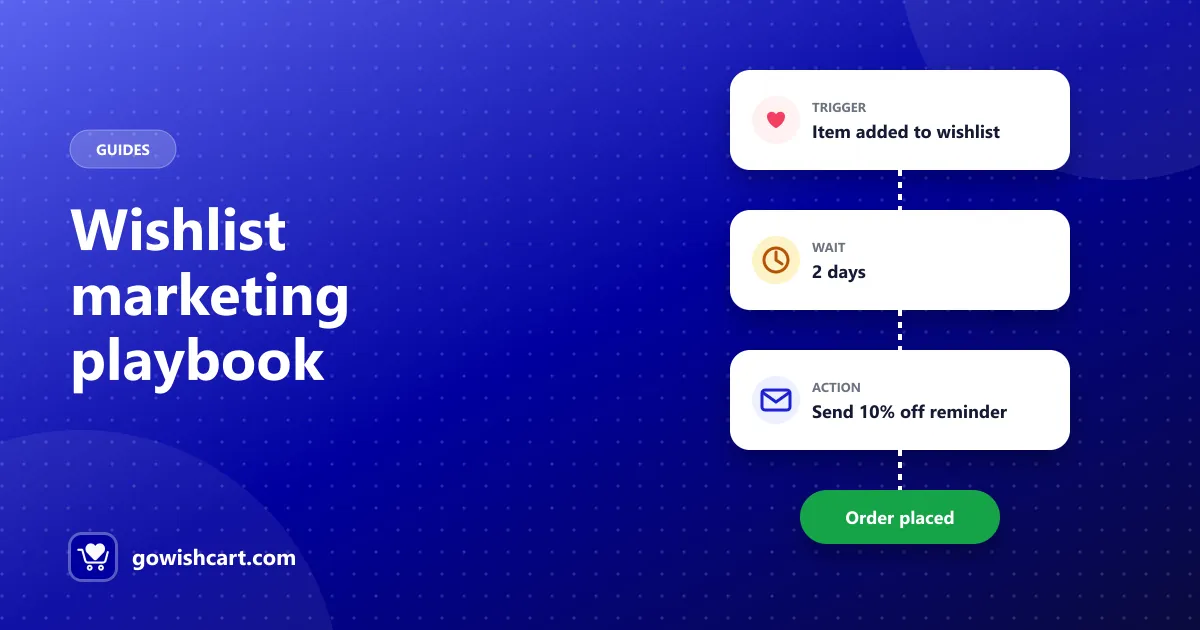
GoWishCart Pro’s analytics show which products are saved most. On the free version, you can build the same picture in FluentCRM: start a funnel with the item added trigger and tag contacts by product or category, then see which tags grow fastest.
When the sale starts: let alerts do the work
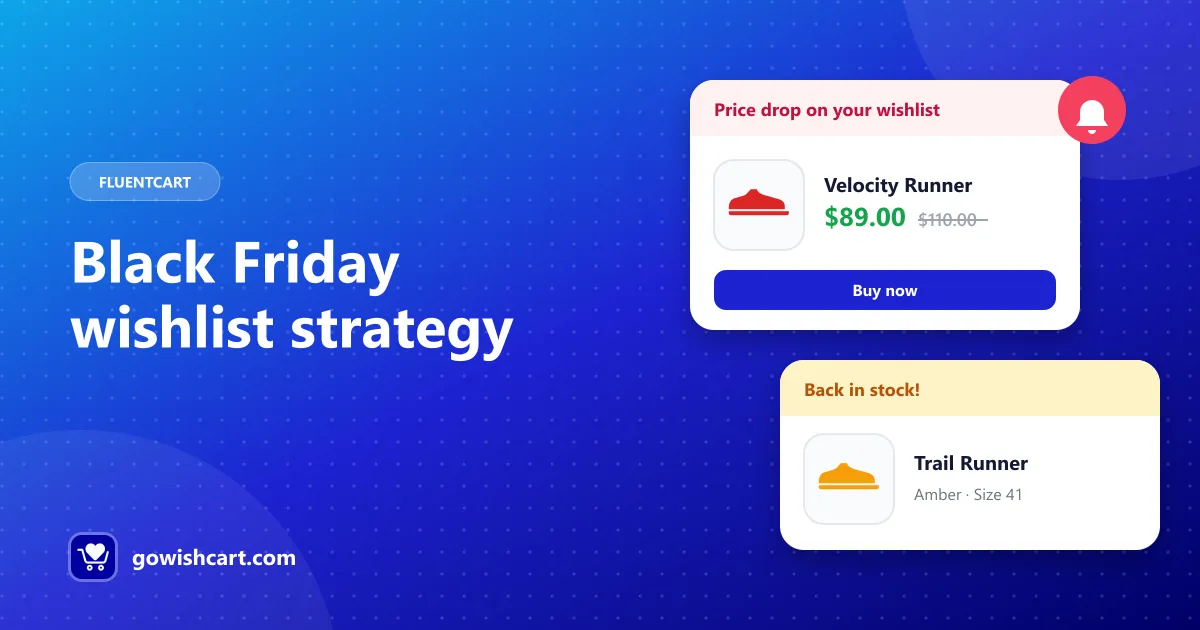
When you lower a price, GoWishCart emails every shopper who saved that product and has an email on file. Your most interested shoppers hear about the deal first, automatically. See price drop and back-in-stock alerts.
Checklist for launch day:
- Make sure price drop alerts are turned on in Settings → GoWishCart.
- Test it: save a product with a test email, lower its price on staging, and check the email arrives.
- If you use FluentCRM for your own price drop emails, turn off the built-in alert for that event so shoppers don’t get two emails.
- Clear your page cache after changing prices.
During the sale: follow up
- Back in stock. If a deal sells out and you restock, back-in-stock alerts go out automatically.
- Last chance. Use FluentCRM to email shoppers with saved items on sale: “The sale ends tonight, and {product} is still on your wishlist.”
- Cyber Monday. Shoppers who didn’t buy on Friday still have their wishlists. A second, smaller round of discounts can catch them.
After the sale: keep the momentum
- Holiday gifts. Remind shoppers their wishlist works as a gift list. Shared wishlists are part of GoWishCart Pro.
- Leftover interest. Items still saved after the sale are what shoppers want but didn’t buy. Use them for December promotions.
- Review. Note which discounted items sold best and which saved items didn’t convert, and use that for next year.
Related guides
- Wishlist marketing: how to turn saved items into sales
- Automate wishlist emails with FluentCRM
- The complete guide to wishlists on FluentCart
Frequently asked questions
How do wishlists help on Black Friday?
They show which products shoppers want most before the sale, and price drop alerts notify everyone who saved an item as soon as it's discounted.
When should I start promoting the wishlist before Black Friday?
Two to four weeks before the sale. Ask shoppers to save what they want so they're notified when prices drop.
Will GoWishCart send an email when I put a product on sale?
Yes. When the price of a wishlisted product drops, GoWishCart emails shoppers who saved it and have an email on file.

GoWishCart Team
We build GoWishCart, the free wishlist plugin for FluentCart stores. Questions about this article? Ask in thesupport forum.