On this page
More WordPress store owners are moving from WooCommerce to FluentCart. FluentCart provides an official WooCommerce migrator for core store data such as products and orders. But your store also depends on plugins, and the wishlist is one that often gets forgotten until a customer asks where theirs went.
Here’s what to expect, and how to handle it.
Your WooCommerce wishlist plugin won’t come with you
Popular wishlist plugins like YITH WooCommerce Wishlist and TI WooCommerce Wishlist are WooCommerce add-ons. They read WooCommerce products, variations and carts. Once your products live in FluentCart, those plugins have nothing to work with.
You’ll need a wishlist built for FluentCart. GoWishCart is free and covers the features most stores used on WooCommerce:
- add-to-wishlist button on product and shop pages,
- wishlist page with add-to-cart,
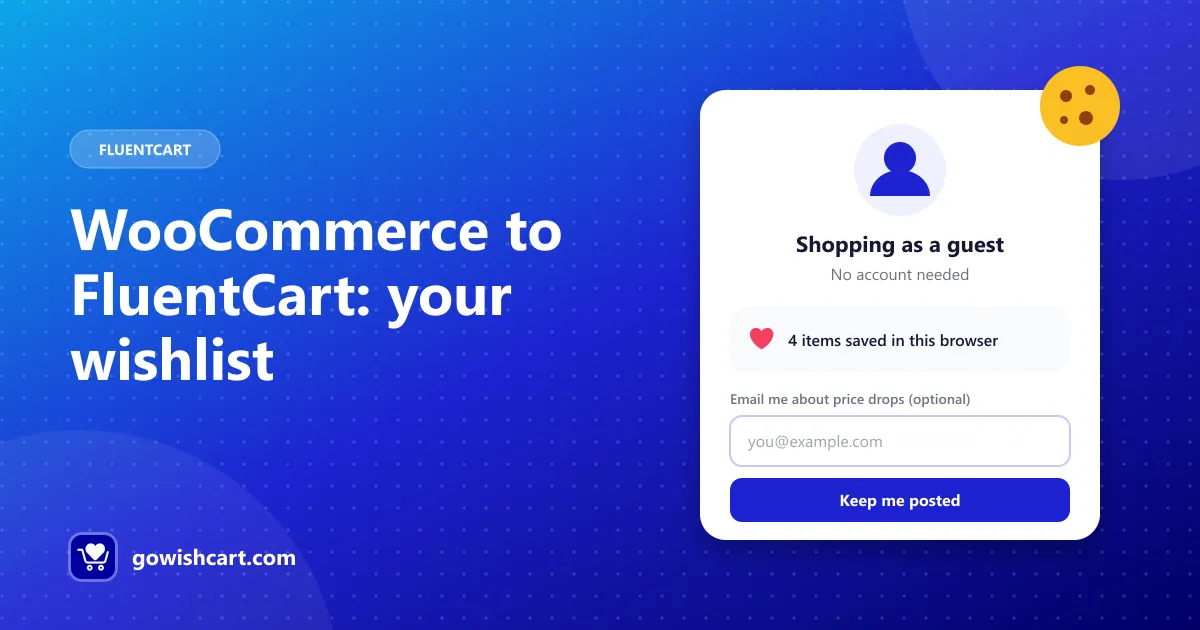
- guest wishlists,
- saved variations,
- price drop and back-in-stock alerts,
- FluentCRM triggers (useful if you’re moving your email marketing to FluentCRM too).
Multiple wishlists, shared wishlists and analytics are available in GoWishCart Pro.
What about existing customer wishlists?
Wishlists are stored by your wishlist plugin, not by WooCommerce, so plan for them not to transfer with your store data. In practice this is usually manageable:
- Most wishlists are short and recent. Shoppers rebuild them quickly.
- Guest wishlists were tied to browser cookies anyway, which often expire.
- You can use the switch as a reason to get in touch (see below).
Before you migrate: a checklist
- Note your most-saved products. Export or write down the products customers save most. That’s valuable demand data, and you’ll want it after the switch.
- Note your wishlist settings. Button position, labels, icons, which pages show the button, and whether guests could save.
- List any wishlist emails. If you sent price drop or reminder emails, write down the copy and timing so you can rebuild them.
- Run the migration on staging first. Test the store, then install GoWishCart on staging and test the wishlist too.
After you migrate: set up the wishlist
- Install and activate GoWishCart.
- In Settings → GoWishCart, choose the wishlist page and button placement to match your old setup.
- Turn on price drop and back-in-stock alerts.
- If you use FluentCRM, connect it and rebuild your reminder funnels. See automate wishlist emails with FluentCRM.
- Test as a guest and as a logged-in customer.
The full walkthrough is in How to add a wishlist to your FluentCart store.
Turn the switch into a win-back email
Use the move as a reason to contact customers:
Subject: Our store has a new look, and a better wishlist
We’ve moved to a faster platform. Saved items from our old wishlist didn’t come with us, so take a minute to save your favorites again. You’ll get an email if they drop in price or come back in stock.
[Browse the store]
Lead with the products you noted were most saved. It’s a natural way to remind people what they wanted.
Related guides
- YITH WooCommerce Wishlist alternative for FluentCart
- How to add a wishlist to WordPress without WooCommerce
- The complete guide to wishlists on FluentCart
Frequently asked questions
Will my WooCommerce wishlist plugin work with FluentCart?
No. WooCommerce wishlist plugins depend on WooCommerce products and carts. Once your store runs on FluentCart, you need a wishlist plugin built for FluentCart, such as GoWishCart.
Do customer wishlists transfer when I migrate to FluentCart?
Wishlists are stored by your wishlist plugin, not WooCommerce, so plan for them not to transfer. Export a list of your most-saved products before you switch so you keep that insight.
Is there a wishlist plugin for FluentCart?
Yes. GoWishCart is a free wishlist plugin built for FluentCart, with guest wishlists, saved variations, price drop and back-in-stock alerts and FluentCRM triggers.

GoWishCart Team
We build GoWishCart, the free wishlist plugin for FluentCart stores. Questions about this article? Ask in thesupport forum.