On this page
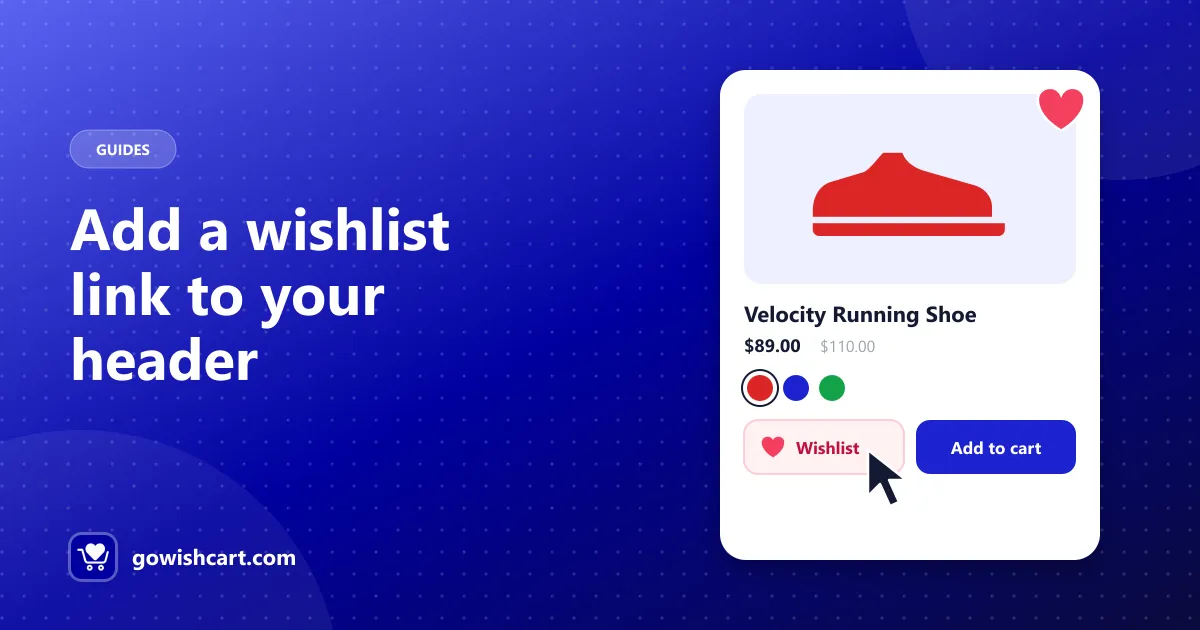
Your shoppers are saving products. Great. But when they come back next week, can they find their wishlist?
Logged-in customers might look in their account. Guests don’t have one. For them, a link in your header or menu is often the only way back. Here’s how to add it.
Step 1: Find your wishlist page
GoWishCart creates a wishlist page when you activate it. To see which page it uses, open Settings → GoWishCart. If you built your own page with the [gowishcart_wishlist] shortcode, make sure it’s the one selected there.
Step 2: Add it to your menu
Classic themes (Appearance → Menus)
- Go to Appearance → Menus.
- Select your main menu.
- Under Pages, tick your wishlist page and click Add to Menu.
- Optionally change the Navigation Label, for example to Wishlist or ♡ Saved.
- Click Save Menu.
Some themes also have a Customizer option for header icons. Check Appearance → Customize → Header to see if yours does.
Block themes (Appearance → Editor)
- Go to Appearance → Editor and open the Header template part.
- Click the Navigation block.
- Click + and choose your wishlist page.
- Save.
To show an icon instead of text, add a small Image block with a heart icon next to the cart icon and link it to your wishlist page.
Page builders
In Elementor, Bricks and similar builders, edit your header template and add an Icon or Button element that links to your wishlist page. Put it next to the cart icon so shoppers see both together.
Step 3: Choose a label shoppers recognise
- A heart icon is the most widely recognised symbol for a wishlist.
- If you use only an icon, add an accessible label (such as Wishlist) so screen readers announce it.
- On mobile, make sure the link is visible in the mobile menu, not only the desktop header.
Other places to link the wishlist
- The footer, under “Shop” or “My account”.
- Order confirmation emails, with a line like “Saved something for later? See your wishlist.”
- Your wishlist emails. Every reminder should link to the wishlist page.
- Inside content with the
[gowishcart_wishlist_button]shortcode. See GoWishCart shortcodes.
Test it
Open your store in a private window, save a product as a guest, close the tab, then come back and use your new header link. If the wishlist shows your item, you’re done. If not, clear your page cache and try again.
Related guides
- How to add a wishlist to your FluentCart store
- Why guest wishlists win more sales
- The complete guide to wishlists on FluentCart
Frequently asked questions
How do I add a wishlist link to my WordPress menu?
In a classic theme, go to Appearance → Menus and add your wishlist page. In a block theme, go to Appearance → Editor, open the header and add a link to the wishlist page in the Navigation block.
Where is my wishlist page?
GoWishCart creates a wishlist page when you activate it. You can see or change which page it uses in Settings → GoWishCart.
Why does the wishlist need a link in the header?
Guests don't have an account page, so a header or menu link is often the only way for them to get back to their wishlist.

GoWishCart Team
We build GoWishCart, the free wishlist plugin for FluentCart stores. Questions about this article? Ask in thesupport forum.