On this page
GoWishCart places the wishlist button on your product pages automatically. But sometimes you want more control: a wishlist inside your account page, a button on a landing page, or a custom product layout built in a page builder. That’s what the two shortcodes are for.
The two shortcodes
| Shortcode | What it shows |
|---|---|
[gowishcart_wishlist] |
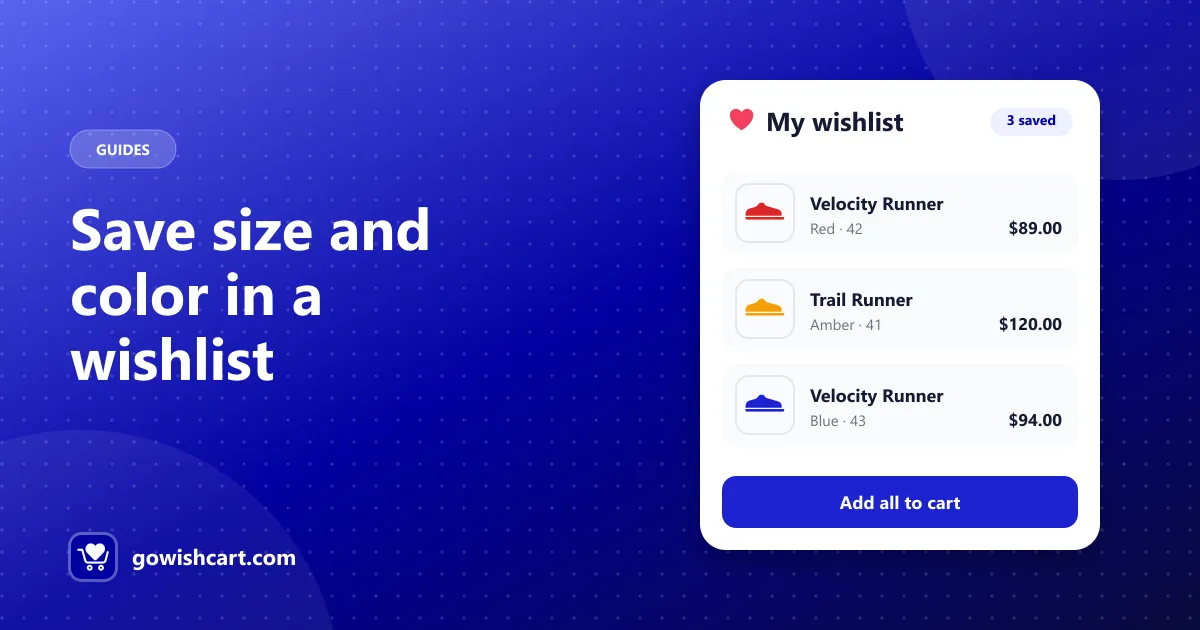
The current shopper’s wishlist, with saved variations, prices and add-to-cart |
[gowishcart_wishlist_button] |
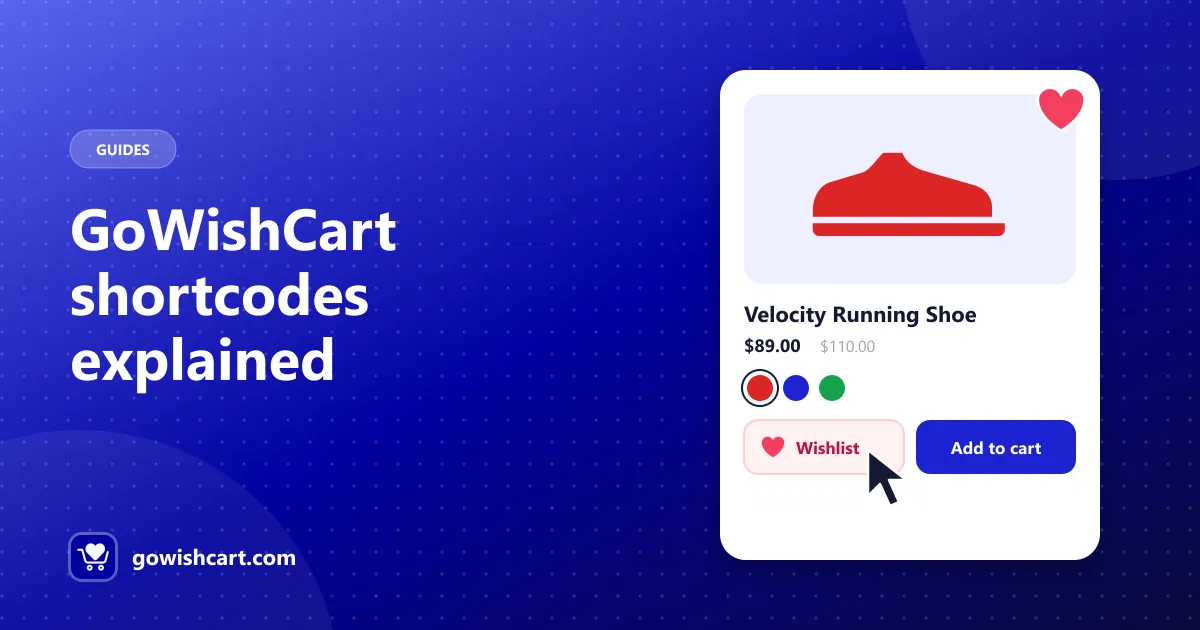
An add-to-wishlist button |
[gowishcart_wishlist]: the wishlist page
When you activate GoWishCart, it creates a wishlist page for you. You only need this shortcode if you want the wishlist somewhere else.
Common uses:
- Your own wishlist page with extra content above or below, such as a heading, a note about price alerts, or product recommendations.
- A “My account” area. Put the wishlist next to orders and profile details.
- A page built with a page builder like Elementor or Bricks, so the wishlist matches the rest of your design.
How to add it in the block editor:
- Edit the page.
- Add a Shortcode block.
- Paste
[gowishcart_wishlist]. - Save the page, then select it as your wishlist page in Settings → GoWishCart so buttons and emails link to the right place.
That last step matters. If you build a new wishlist page but the settings still point at the old one, shoppers will be sent to the wrong page.
[gowishcart_wishlist_button]: the button anywhere
The automatic button covers product pages, and the Show Button on Shop Page setting covers your catalog. Use the shortcode for everything else:
- Custom product templates built in a page builder, where the automatic position doesn’t fit your layout.
- Landing pages for a single product or campaign.
- Product sections in blog posts, so readers can save what they’re reading about.
Add it the same way: a Shortcode block (or your builder’s shortcode widget) with [gowishcart_wishlist_button] inside.
Tips
- Don’t show two buttons. If you add the button by shortcode on a product page, turn off the automatic button for that position so shoppers don’t see it twice.
- Clear your cache. After adding a shortcode or changing settings, clear any page cache so visitors see the change.
- Test as a guest. Use a private window to check the button and wishlist work for shoppers who aren’t logged in.
Related guides
- How to add a wishlist to your FluentCart store
- Add a wishlist link to your header and menu
- The complete guide to wishlists on FluentCart
- Shortcode reference in the docs
Frequently asked questions
What is the GoWishCart wishlist shortcode?
Use [gowishcart_wishlist] to show the wishlist on any page, and [gowishcart_wishlist_button] to show an add-to-wishlist button.
Do I need the shortcode if GoWishCart created a wishlist page?
No. The page GoWishCart creates already shows the wishlist. Use the shortcode only if you want the wishlist on a different page or inside your own layout.
Can I use the shortcodes in Elementor, Bricks or the block editor?
Yes. Add a Shortcode block or widget and paste the shortcode into it. Any builder that renders WordPress shortcodes will work.

GoWishCart Team
We build GoWishCart, the free wishlist plugin for FluentCart stores. Questions about this article? Ask in thesupport forum.